Adding tHX Token to MetaMask (Mobile)
Now that you have added Hydrix Chain to MetaMask, you can add custom tokens like tHX to your wallet. This guide will show you how to import tHX on MetaMask Mobile.
Token Information
Here are the token details you'll need:
| Field | Value |
|---|---|
| Token Name | tHX |
| Token Address | 0xfa5e9E839C25B1Ef876177Ba3D3DD2d27c1ede95 |
| Token Symbol | tHX |
| Token Decimals | 18 |
tHX is a token on the Hydrix Testnet. Make sure you're connected to Hydrix Testnet before adding this token.
You must be connected to Hydrix Testnet to add tHX. If you're on Ethereum or another network, the token won't appear or work correctly.
Step-by-Step Guide
Step 1: Open MetaMask Mobile
Launch the MetaMask app on your mobile device (iOS or Android).
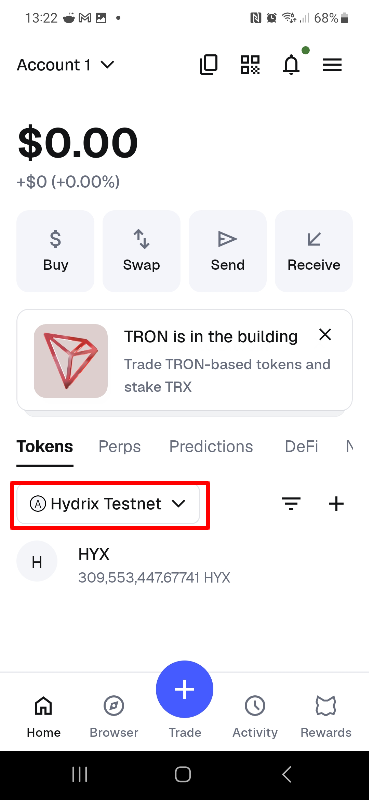
Make sure you're on the Hydrix Testnet network before proceeding. You should see "Hydrix Testnet" at the top center of your screen.
Step 2: Verify Network
Check that "Hydrix Testnet" is displayed at the top center of your screen. If not, tap the network dropdown and switch to Hydrix Testnet.
Step 3: Access Token Management
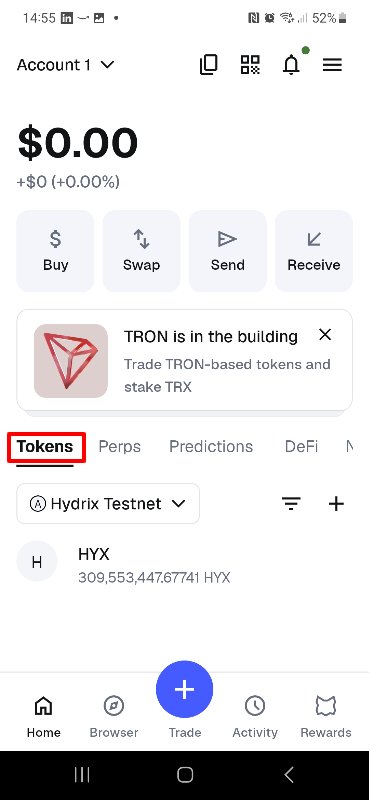
Tap the "Tokens" tab at the center-left of the screen (it should already be selected by default on the main screen).
Step 4: Access Import Screen
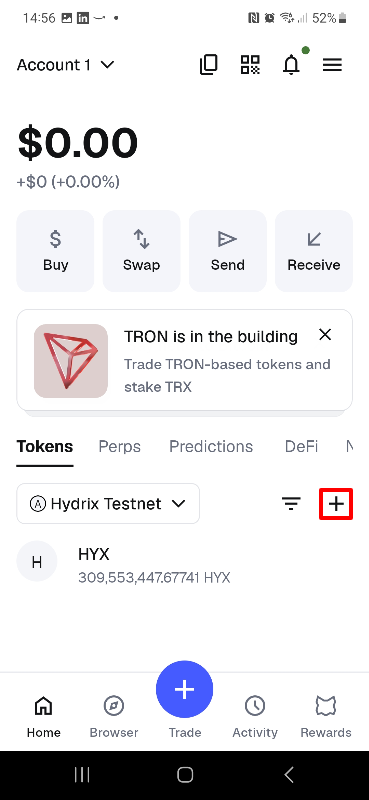
Click the "Plus" symbol on the center-right of the screen
Step 5: Enter Token Details
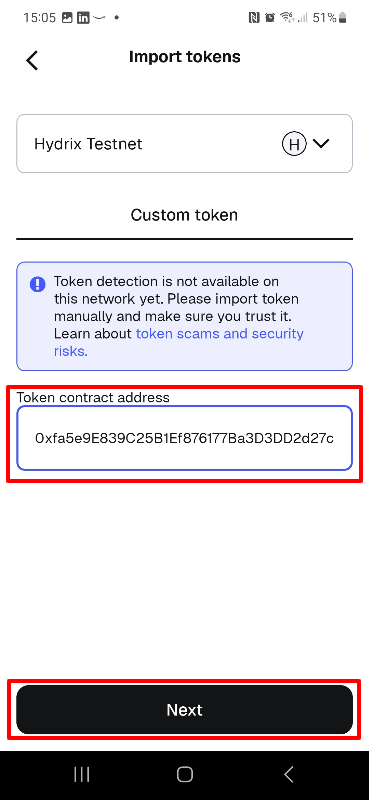
You'll see a form with a token address field. Fill in the following information:
Token Address
0xfa5e9E839C25B1Ef876177Ba3D3DD2d27c1ede95
After entering the token address, MetaMask should automatically fill in the Token Symbol (tHX) and Decimals (18). If it doesn't, enter them manually.
Token Symbol (if not auto-filled)
tHX
Token Decimals (if not auto-filled)
18
Then click "Next"
- Copy and paste the token address exactly as shown to avoid errors
- Make sure there are no extra spaces
- The token address is case-insensitive, but copy it exactly to be safe
Step 6: Import Token
After entering the details, you will be taken to another import screen, tap "Import" at the bottom of the screen.
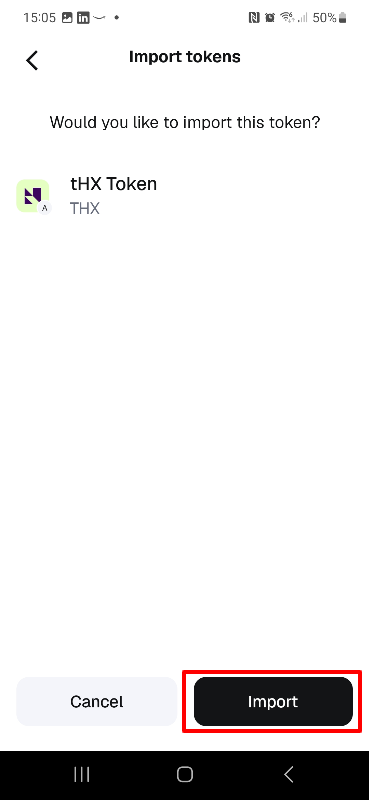
Step 7: Enjoy tHX Token
You should now see tHX in your token list on the Hydrix Testnet! Your tHX balance will appear (it will show 0 if you don't have any yet).
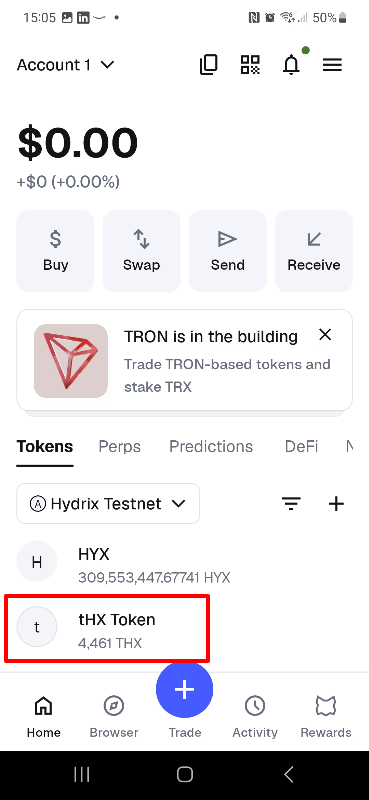
You've successfully added tHX to MetaMask Mobile! You can now send, receive, and view your tHX balance.
Viewing Your tHX Balance
To view your tHX balance:
- Make sure you're on Hydrix Testnet
- Look for tHX in your token list on the main screen
- Your balance will be displayed next to the token name
- Tap on tHX to see transaction history
Sending tHX Tokens
To send tHX tokens:
- Tap on tHX in your token list
- Tap "Send"
- Enter the recipient's address or scan their QR code
- Enter the amount of tHX to send
- Review the transaction and gas fee (paid in HYX)
- Tap "Send" to confirm
Remember that gas fees for tHX transactions are paid in HYX (the native token), not tHX. Make sure you have enough HYX in your wallet to cover gas fees.
Receiving tHX Tokens
To receive tHX tokens:
- Tap on tHX in your token list (or stay on the main screen)
- Tap "Receive"
- Share your Hydrix address with the sender
- You can copy the address or show them your QR code
Your tHX address is the same as your Hydrix/HYX address. All tokens on Hydrix Testnet use the same wallet address.
Troubleshooting
Token Not Appearing After Import
If tHX doesn't appear after importing:
- Verify network - Make sure you're on Hydrix Testnet, not Ethereum or another network
- Check token address - Verify the address is exactly:
0xfa5e9E839C25B1Ef876177Ba3D3DD2d27c1ede95 - Scroll down - The token might be at the bottom of your list
- Refresh - Pull down on the main screen to refresh
- Restart app - Close MetaMask completely and reopen it
Balance Shows as 0
If your tHX balance shows as 0:
- Check on explorer - Verify your balance at hydrix.online
- Wait a moment - The wallet may need time to sync
- Refresh - Pull down on the main screen to refresh
- Switch networks - Switch to another network and back to Hydrix
- Re-import token - Remove and re-add the token
Cannot Import Token
If you can't import the token:
- Wrong network - Make sure you're on Hydrix Testnet first
- Check address - Verify the token address is correct
- Try Custom Token tab - Make sure you're on the "Custom token" tab
- Restart app - Close and reopen MetaMask
- Update MetaMask - Make sure you have the latest version
Transaction Failing
If your tHX transactions are failing:
- Check HYX balance - You need HYX to pay for gas fees
- Verify recipient address - Make sure the address is correct
- Check token balance - Ensure you have enough tHX to send
- Increase gas - Try setting a higher gas limit
- Network status - Visit hydrix.online to check network status
Token Shows Wrong Symbol or Name
If the token displays incorrectly:
- Remove token - Tap and hold on tHX, then select "Remove"
- Re-import - Add it again with the correct details
- Check address - Verify you used the right token address
- Update app - Make sure MetaMask is up to date
Removing tHX Token
If you want to remove tHX from your wallet:
- Tap and hold on tHX in your token list
- Select "Hide" or "Remove token"
- Confirm the removal
Hiding a token only removes it from your view. Your actual tHX tokens are still in your wallet and can be re-imported at any time.
Adding Other Tokens
You can use this same process to add any custom token on Hydrix Testnet:
- Make sure you're on Hydrix Testnet
- Get the token contract address
- Go to Import tokens
- Enter the token address
- Tap Import
You can find token contract addresses on hydrix.online or from the project's official website or documentation.
Need More Help?
- Documentation: Visit our full documentation at Hydrix Docs
- Block Explorer: Check transactions at hydrix.online
- Discord: Join our community for live support
- Email: Contact support@hydrix.tech
Next Steps
Now that you've added tHX to MetaMask, you can:
- Send and receive tHX - Start making token transactions
- Check your balance - Monitor your tHX holdings
- Use tHX in DApps - Connect to Hydrix applications that use tHX
- Explore other tokens - Add more tokens to your Hydrix wallet